
A good AI calling campaign starts with the right list. In Nedzo, you filter your contacts, save the filter as a view, and point a campaign at the view. Your AI agent then calls only the people who fit, on the days and hours you pick.
Say you run a roofing company with 3,000 contacts. This week you only want to call the 180 people who asked for a repair quote and never booked. Calling all 3,000 burns minutes and bugs past customers who don't need a roof.
You need a Nedzo account with contacts and an AI voice agent that makes outbound calls. It takes five steps.
Step 1. Filter your contacts
Go to Contacts and click Filter. Pick a field, then a rule, then a value, and click Apply.
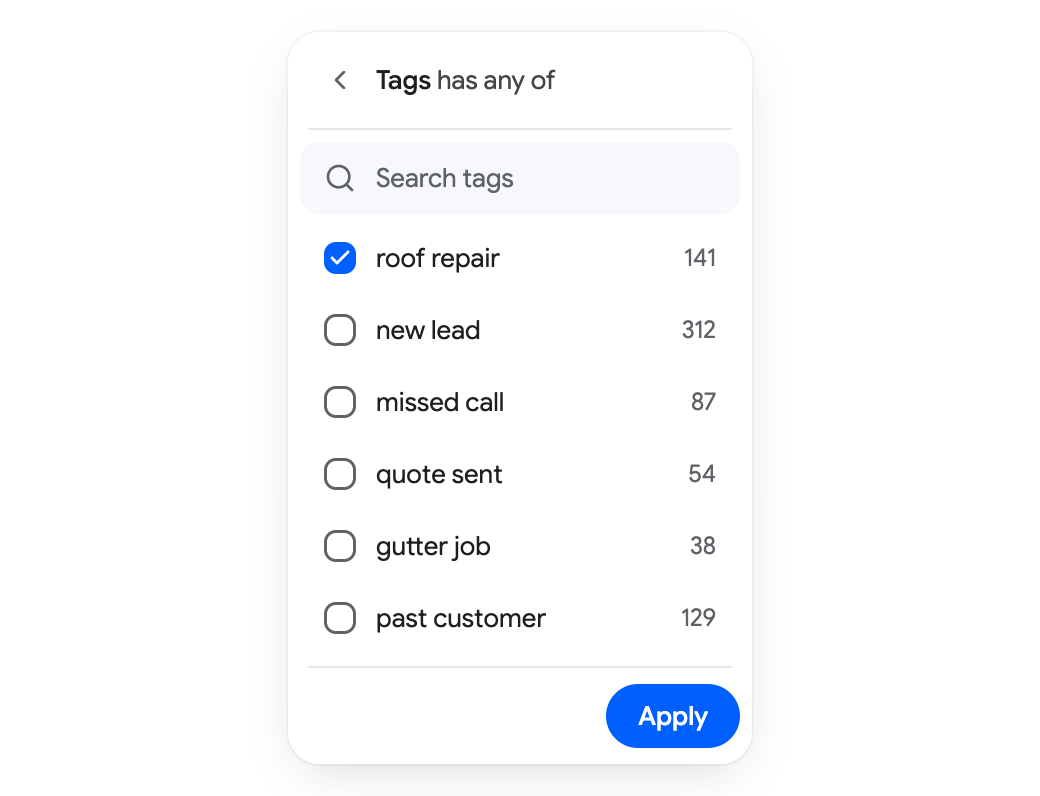
The fields are Name, Email, Phone, Company, Tags, Do Not Disturb, Created and Last Activity. Your custom fields sit below, under Custom fields.
The rules change with the field:
- Text fields use Is, Is not, Contains, Does not contain, Is empty and Is not empty.
- Date fields use Is, Is before, Is after, Is between, In the last X days, Is empty and Is not empty.
- Tags use Has all of, Has none of, Has any of, Is empty and Is not empty.
- Do Not Disturb is on or off.
For tags, tick the ones you want. Each tag shows how many contacts have it.
You can stack filters. A contact has to match all of them to stay on the list. For the roofing example, you might use:
- Tags has any of "roof repair"
- Tags has none of "booked"
- Last Activity in the last 90 days
Step 2. Save the filter as a view
Once the list looks right, click Save as new view at the end of the filter row. Give it a name your team will get, like "Roof repair, not booked", and click Save.
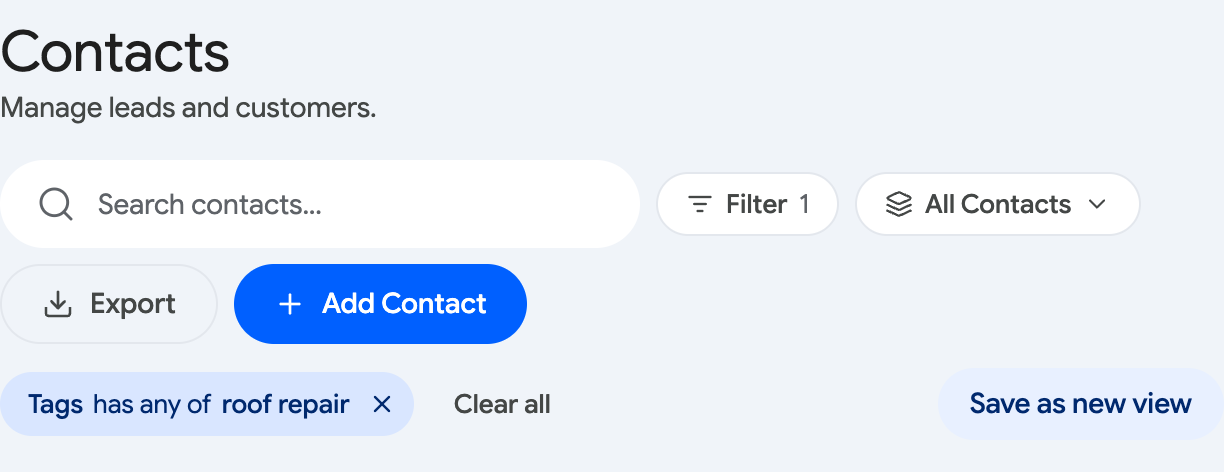
Views are shared with your whole workspace. Switch views from the menu next to the Filter button. It reads All Contacts until you pick another view.
A view keeps filtering as your contacts change. When a new lead gets the "roof repair" tag, they join the view. When someone gets the "booked" tag, they drop out. Read more on how campaigns follow a view.
Step 3. Create the campaign and pick the view
Go to Campaigns and click New campaign. The first step is called Who to call.
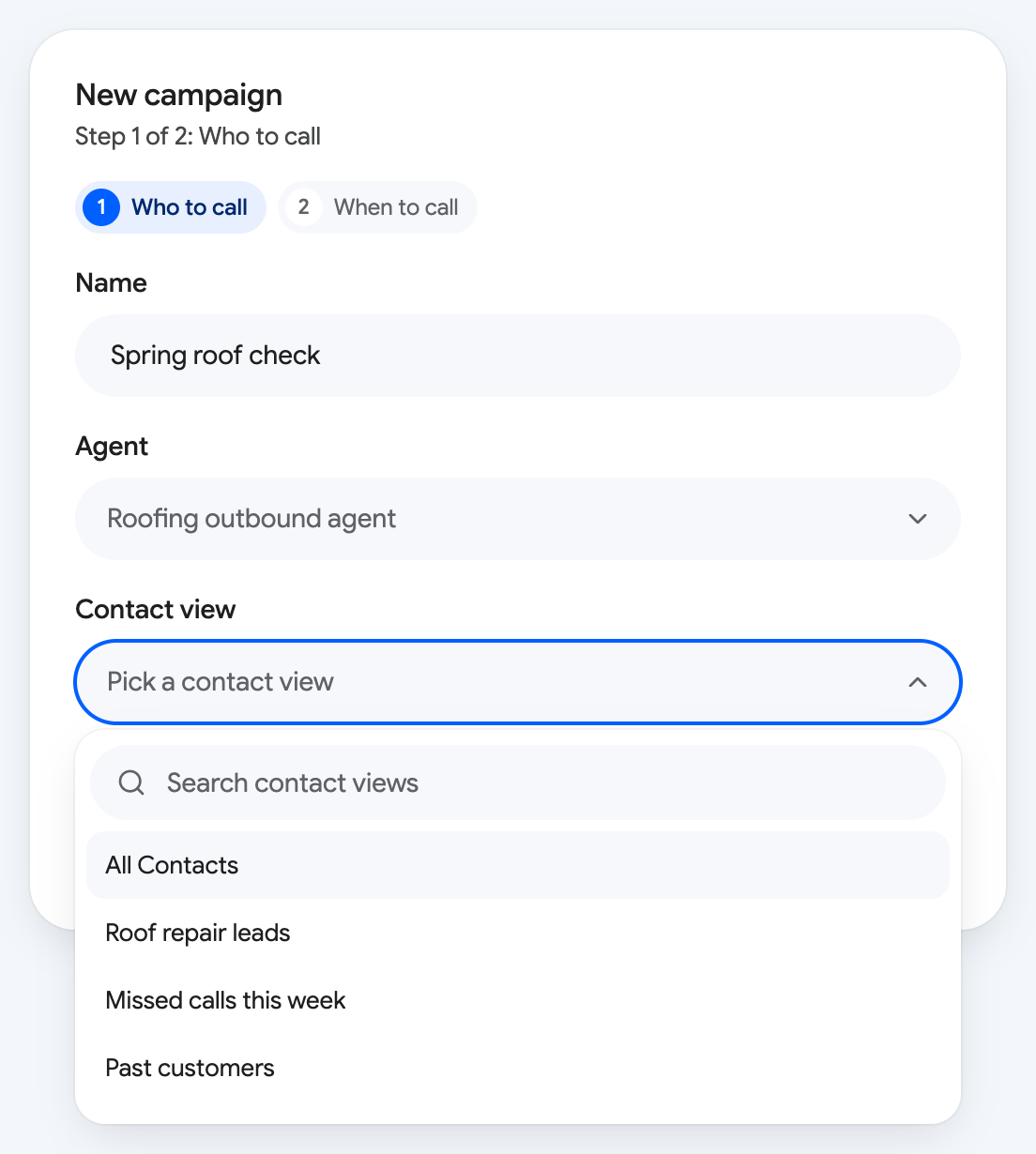
Fill in three things:
- Name. Something you'll know at a glance, like "Spring roof check".
- Agent. The AI voice agent that places the calls.
- Contact view. Pick the view you saved. You can search your views by name.
Pick All Contacts, at the top of the menu, when every contact should get the call. Pick a saved view for everything else.
Step 4. Set when to call
The second step, When to call, sets the limits:
- Daily usage cap (minutes). Nedzo stops dialing for the day once it uses this many minutes. The default is 60.
- Maximum follow-ups. How many times Nedzo tries again after the first call. 0 means call once and stop.
- Calling days. Monday to Friday unless you change it.
- Timezone. By default, 9am means 9am in each contact's own time zone.
- Local calling hours. The default is 9:00 AM to 5:00 PM. You can pick any window from 9:00 AM to 8:00 PM.
Click Create campaign when you're done.
Step 5. Check the list, then switch it on
A new campaign starts as a draft, so nothing dials yet. The campaign page shows who it will call once you switch it on.
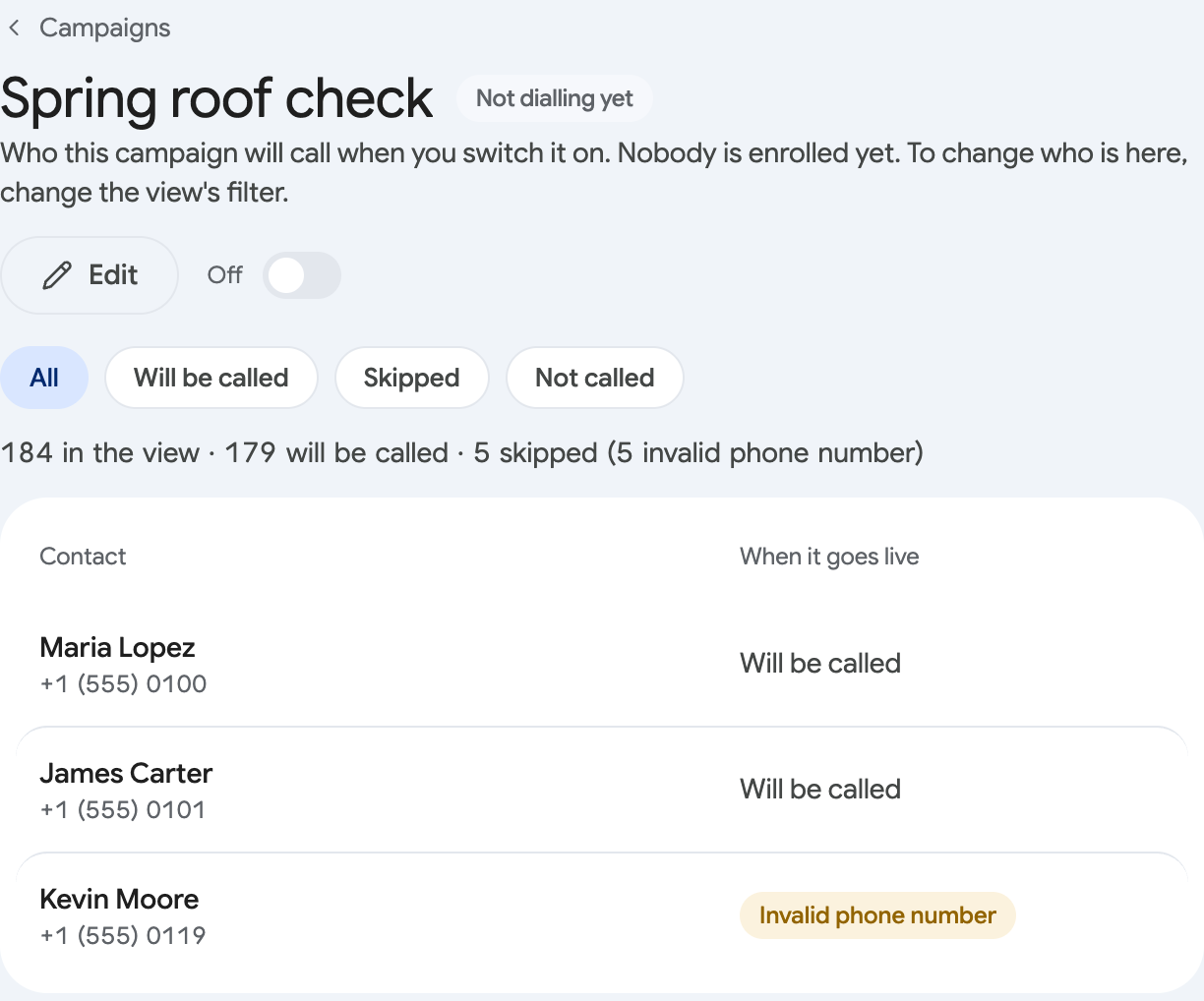
Each contact shows "Will be called" or the reason they'll be skipped, like an invalid phone number. Nedzo checks every number before it dials and skips the invalid ones. If a number fails as bad on a call, Nedzo never dials it again. Read more on how Nedzo skips invalid numbers.
To change who the campaign calls, change the view's filter. The campaign follows its view.
When it looks right, flip the switch next to Edit to On. Nedzo only dials on your calling days, inside your calling hours.
Track the campaign while it runs
The contact list shows each person's Status, Attempts, Last outcome, Last called and Next attempt. Use the chips above the list to see only Callable, Waiting on callback, Skipped or Stopped contacts. Once a call ends with a final outcome, Nedzo stops calling that person.
To take someone out, open the menu on their row and pick Remove from campaign. To remove a batch, tick their rows and click Remove from campaign in the bar that shows up. You can't undo a removal.
A few tips
- Start small. Run a view of 50 contacts first and read the outcomes before you build a campaign on the bigger list.
- Use a "booked" tag. When a call ends in a booking, tag the contact. Your view drops them, and the campaign stops calling them.
- Keep one view per offer. A spring promo and a quote follow-up need different lists.
- Call warm leads first. Across 28 Nedzo accounts, calls to warm leads did almost 2 times better than calls to cold lists. Read the warm vs cold data study.
Start a free trial and build your first call list today.